
To Skip Disk Checking Press any Key: How to Disable it


 6 min. read
  Updated on
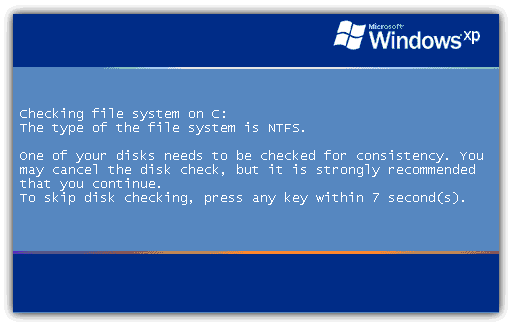
One of Windows annoying so called “features” is the Windows disk checker (Chkdsk) being automatically executed whenever you don’t shut down your computer properly. The blue colored screen appears on Windows XP or black colored screen for Windows Vista and 7 during boot that says:
Checking file system on C:
The type of the file system is NTFS.
One of your disks needs to be checked for consistency. You may cancel the disk check, but it is strongly recommended that you continue.
To skip disk checking, press any key within 10 seconds(s).
Simply pressing any key would stop Check disk from running but when you restart your computer, you’ll get this prompt again because Windows still thinks the drive needs scanning and will keep reminding you until it is checked. Sometimes, even after letting Check disk scan the drive that it wants to, the checking process would still automatically run at next boot and it wants to check the drives again.
What we have found out is that when Windows detects there has been an improper shutdown or a drive such as a USB flash drive has been ejected before the system has finished with it, a secret value is stored on the drive to let Windows know about the issue and force a Check disk request. This value is known as a “Dirty bit” and is a single hex value (2 values for Windows 8) that Windows looks at on boot for system drives or when the the external device is inserted.
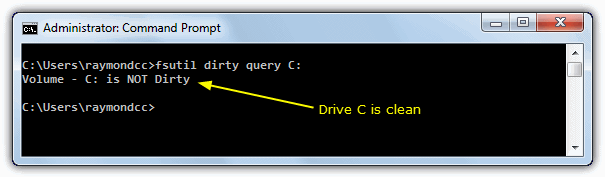
One easy way to determine if a drive letter is marked as dirty and will require auto chkkdsk on boot is to run the command fsutil dirty query C: in Command Prompt. If the fsutil tool reports that the drive letter is not dirty, the disk checking process will not want to run for that drive. However, when a drive letter is being marked as dirty, we discovered the location of the hex values on the drive that are being modified and resetting the dirty bit hex value to default will magically stop the auto disk check on boot.
While resetting the dirty bit manually would be the best solution for many situations, it is more difficult to do on system drives such as C because they will be locked and not allow editing from within Windows to change the bit value. Another option for these drives is to simply instruct Windows not to bother checking whether they have been marked as dirty on boot, so you’ll never get a request to auto check them again. Here’s how to disable or stop Check disk from scanning your drives in Windows boot for Windows XP, Vista, 7 and Windows 8.
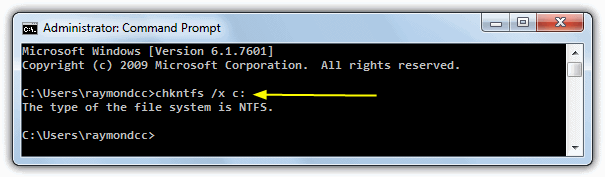
There are people who suggest editing the registry to do this which works if done properly, but the recommended and safer way to disable auto Check disk from starting up is using the /x switch via the chkntfs command in Command Prompt. This switch will exclude a drive from the default boot time check. To get to the Command Prompt, go to:
Start -> Run (or Win key+R) -> type cmd and press enter
If you have drive C: as the drive you want exclude, then the command to disable chkdsk from scanning the C: drive would be:
chkntfs /x c:
If you have a second drive to exclude, C: and D: for example, you can disable Check disk with the command below. Simply add all the drives you want to exclude in this way, separating them with a space.
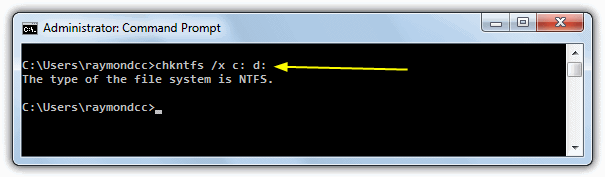
chkntfs /x c: d:
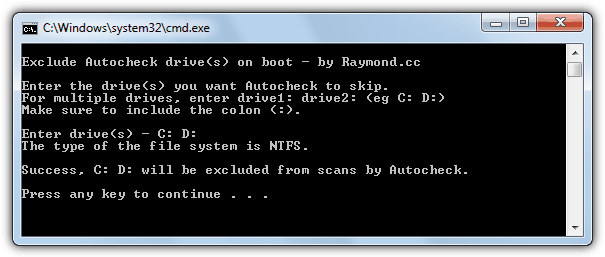
Sometimes users don’t like editing the registry or using the command prompt, which is why for your convenience, we have created a simple batch file to run the command for you. Download and run the .bat file, then enter the drive letter(s) to exclude from autocheck when prompted, the rest is automatic. Make sure to right click and “Run as Administrator”.
Download Autocheck Boot Exclude.bat
There are some experts who believe that it’s better not to disable Check disk from scanning your hard drive. But sometimes it makes sense if you don’t want it to scan your hard drive because if it finds anything bad, damaged files will be changed to File00001.CHK. When that happens, you will have to use data recovery software or some third party tools to recognize and recover the CHK files.
There are other important functions the Windows chkntfs command performs you should know about, which are discussed in more detail on page 2.
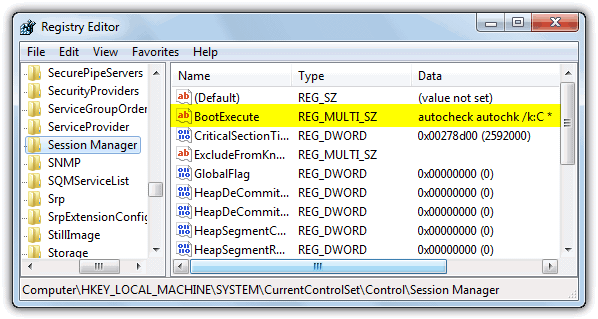
The chkntfs utility itself works by modifying the BootExecute value in the system registry which is what Windows looks at during boot. For the curious and those who like to see how it works, the BootExecute value is located in the following registry key:
HKEY_LOCAL_MACHINE\SYSTEM\CurrentControlSet\Control\Session Manager
The default value for the BootExecute entry is “autocheck autochk *“. When you use the /x switch in chkntfs, it will add a /k: parameter and drive letter before the asterisk. This parameter excludes volumes from being checked for the presence of a dirty bit. For example, if you run the command “chkntfs /x c:” in a Command Prompt, this would modify the registry entry to “autocheck autochk /k:C *”.
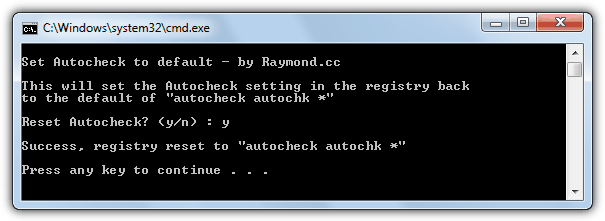
You can also use the chkntfs command to reset the BootExecute registry value back to the default of “autocheck autochk *” if you need to for any reason. This command is quite useful in some circumstances because there’s another well known and common error you might see on boot which is:
autochk program not found – skipping autocheck
If the autocheck entry has become corrupted by software or the settings for it are incorrect, you will see the error. Although it isn’t a vitally important error and won’t stop your computer from booting unless there are serious errors on the C drive, it can be annoying to see on every boot none-the-less. You can use this command to restore the Windows default value of “autocheck autochk *”:
chkntfs /d
This small batch file will make the reset procedure automatic, download and run the file as administrator.
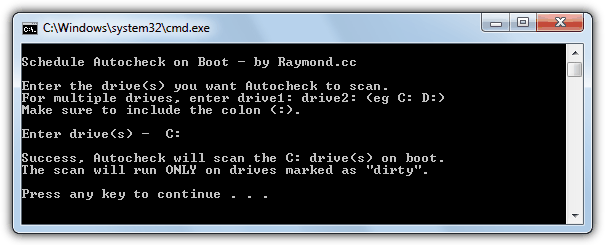
There is also a command to schedule a specific drive to be checked at boot. Autochk will run only if the drive is marked as dirty. Simply supply the drive letter(s) after the command.
chkntfs /c c:
The batch script below makes the scheduling automatic, and runs the same as the exclude script. Download, run and supply a drive letter.
Download Autocheck Boot Schedule.bat
If any of the above methods still don’t work for you, the other option could be to reset the dirty bit on the drive which will force it not to be marked for checking. The drive will have to be edited offline and not through Windows, for more details on how to perform offline dirty bit editing with the minimum of fuss, refer to our article on clearing the dirty bit manually.



Improve this guide

User forum
135 messages